sales and quotes
Leads and enquiries
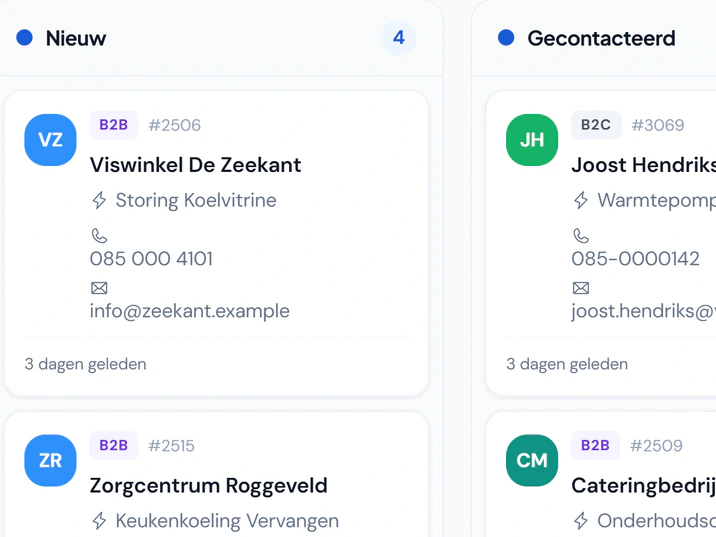
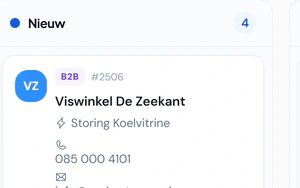
Keep track of every enquiry, from first contact to approval. Schedule a call, follow its progress and invite the customer to your portal directly from the lead.
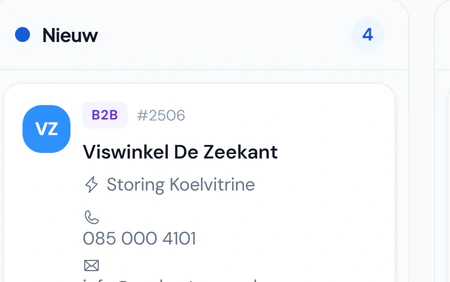
- As a list, as a kanban board by stage or grouped
- A branded enquiry form for your website that sends enquiries straight to Fikst
- With a heat pump calculator: the visitor sees the capacity, suitable units, the ISDE subsidy and the savings before leaving their details
- You set your own stages, sources and quick actions
- Plan a call or an on-site appointment from the lead
- Filter leads by service area, feasibility and job size, with reasons and a room-by-room kW calculator
- Invite the customer to your portal, with the questionnaire for the service
- Duplicate lead and customer warnings based on email, phone, Chamber of Commerce number, or name and address, with merging
- Convert to a business or private customer in one click
- Record the reason when you lose a lead
- Lead score and an analysis of your funnel
Book an introduction sales and quotes
Your customer’s online quote
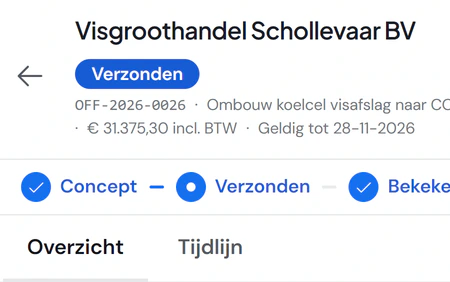
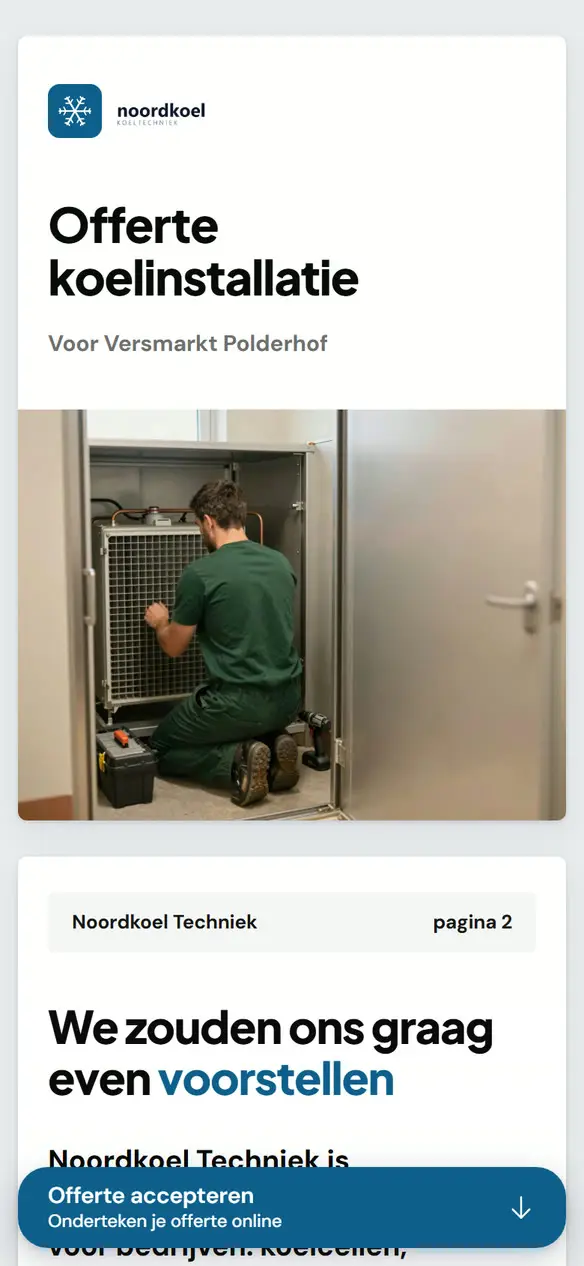
Make it easy for your customer to choose and sign. Send a branded online quote and PDF, with options and digital signing.
- An online link with no login required, plus a PDF
- Options for the customer to choose from
- Optional lines the customer switches on and off, with a running total
- Sign, decline with a reason or ask a question
- After signing, the complete quote as a PDF, for you and the customer
- Business quotes addressed to the contact by name
- You see when it was opened and what the customer looked at
- VAT shown as expected: included for consumers, excluded for businesses
- Subsidy and payback period on the quote itself
Book an introduction sales and quotes
Creating and following up quotes
Follow up quotes without re-entering data. See which have been sent, viewed or accepted, then create the work order and invoice from the same quote.
- Lines, groups, discounts and items from your catalogue
- Margin per line and per quote, only for those allowed to see cost prices
- Product bundles with a bill of materials in one go
- Line templates with the current item price
- An administrator sets the order in which quote templates appear in the template picker. Put frequently used templates first. Without a configured order, Fikst keeps the existing order.
- ISDE subsidy, also when you change the heat pump
- Payment schedule with deposit and instalments
- Follow-up email sequences after sending
- Expiry, extension and reopening, with your contact details shown to the customer
- On approval: work order, project or invoice, and a deposit invoice
- Branding and layout rules per brand or item
Book an introduction sales and quotes
The site survey
Arrive prepared and record the property details on site. Your adviser uses the customer’s answers in the site survey app, confirming or correcting them during the visit.
- On-site survey with photos
- Answers from the customer’s questionnaire are ready
- Dictate instead of typing
- Home data from open sources: year built, energy label, roof areas
Comes with the customer portal.
Book an introduction sales and quotes
Calling campaigns
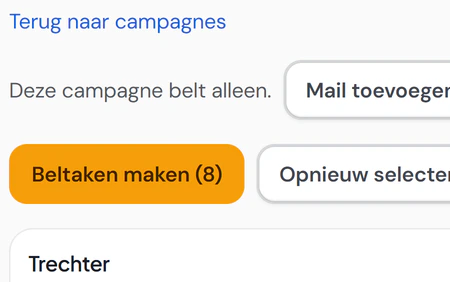
Follow up a target group and track the results of each calling campaign. Assign callers and call tasks, then record the outcome.
- Pick a target group from your customers and installations
- Installations ready for a hybrid heat pump as a target group
- Call tasks assigned to each caller, with outcomes recorded per call
Book an introduction customers and contacts
The customer record
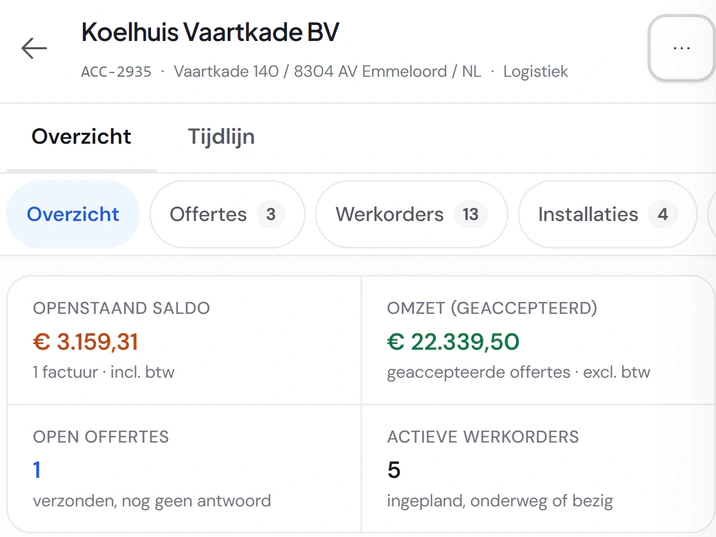
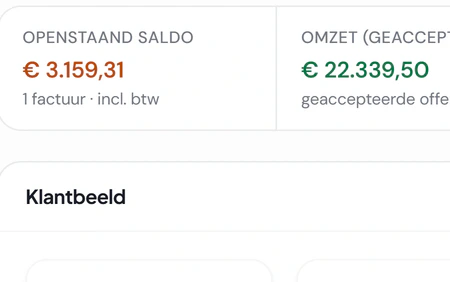
Find the complete customer record in one place. Quotes, work orders, installations and invoices each have their own tab, with outstanding amounts at the top.
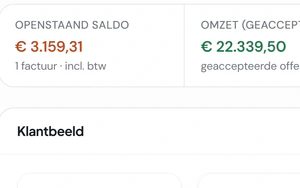
- Outstanding balance, revenue, open quotes and active work orders
- Timeline with notes, attachments and @colleagues
- Owner and team per customer
- Invoice ageing for each customer
- Contact preferences: who wants a call and who an email
- Change a customer between business and consumer, including their invoices and contracts
Book an introduction customers and contacts
Your customer base
Find the right customer or supplier quickly. Search by name, email, phone or postcode, even with a typo, and filter by industry or account owner.
- Look up company details in the Chamber of Commerce register
- Home profile from open sources for private customers
- Possible duplicate customers in one list; you can undo a merge within 30 days
- Merge duplicate customers, in bulk too
- Bulk actions: status, owner, portal invitation, sending invoices
- Tags, favourites and saved views
- Overview of incomplete or duplicate data
- Custom fields and custom objects with their own list
Book an introduction customers and contacts
Tasks and collaboration
Keep follow-ups and appointments visible to the whole team. View tasks and callbacks together, with overdue work at the top.
- Tasks in a list, kanban board or calendar, including recurring tasks
- Team chat with channels and direct messages
- A shared email inbox, linked to the customer
- Global search and keyboard shortcuts for creating records
- In-app notifications about what concerns you
Book an introduction planning and calendar
The planning board
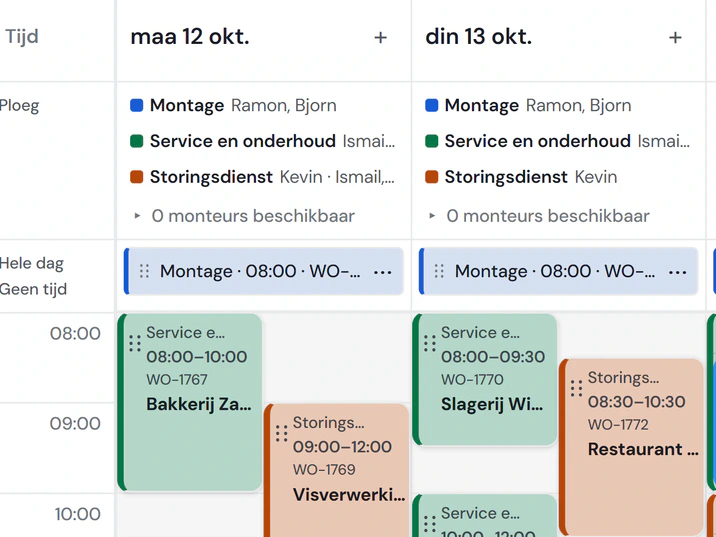
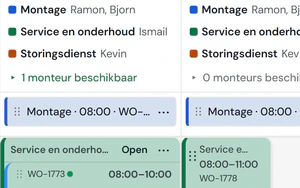
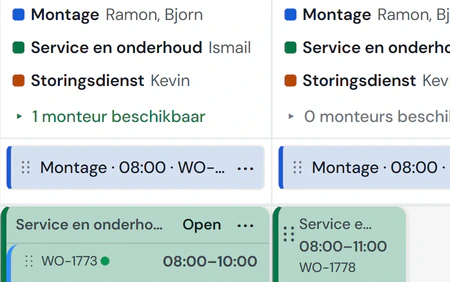
See which crew has capacity and schedule the next job. Drag work from your backlog onto a day and check availability in each planning lane.
- Day, week and lane week, per lane or per employee
- Backlog with what is overdue or ready to plan
- Crew per lane for the week or per day, with history and undo
- Jobs spanning days or weeks, with a crew assigned for each day
- Daily and weekly capacity and utilisation
- Smart planning suggests the shortest detour, you confirm
- Travel time between jobs and the day’s route on the map
- Warnings for expired or missing certificates
- Follow-up visits, in another lane too, and absence on the board
More about the planning board
Book an introduction planning and calendar
Work orders
Keep track of job progress and invoicing. View open, scheduled and invoiced work orders, and filter by technician, work type or purchasing.
- From a quote, a ticket or a contract
- One or more technicians on a work order
- Your own types, subtypes and templates
- Planned materials and extra work, with the purchase list next to it
- Drawings and files the technician sees beforehand
- Actual material costs, visible to users with cost permissions
- Send the job sheet as a PDF or collect a signature through a link
- Appointment reminder for the customer
- Overview of finished work still to be invoiced
More about the planning board
Book an introduction planning and calendar
Calendar and appointments
Coordinate appointments and jobs across your team. Personal and team calendars bring appointments, tasks and work orders together, including in Outlook or on your phone.
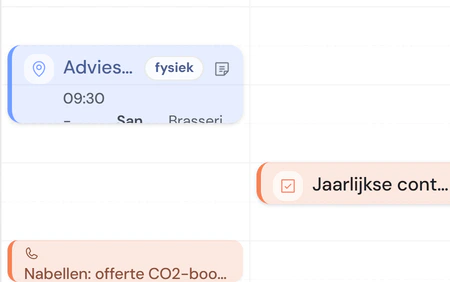
- Personal calendar and team calendar, by day, week or month
- Appointment types with their own duration and colour
- Calendar subscription for Outlook, Google or your phone
- Sync with Google Calendar and Microsoft 365
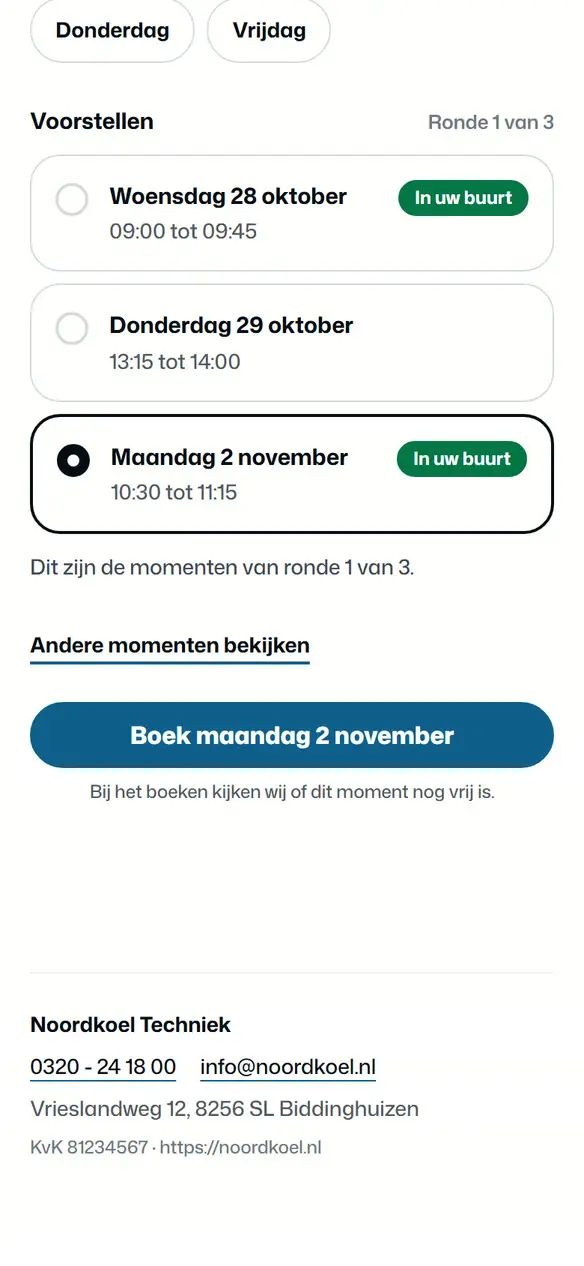
- Time proposals: the customer picks a time through a link
- Plan maintenance in rounds per area, with capacity and public holidays
More about the planning board
Book an introduction job sheets and technician app
Your technician’s day
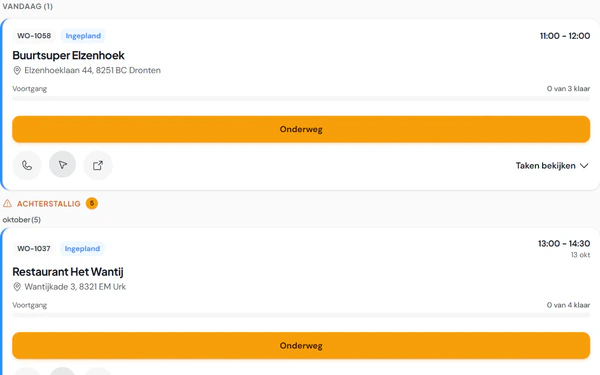
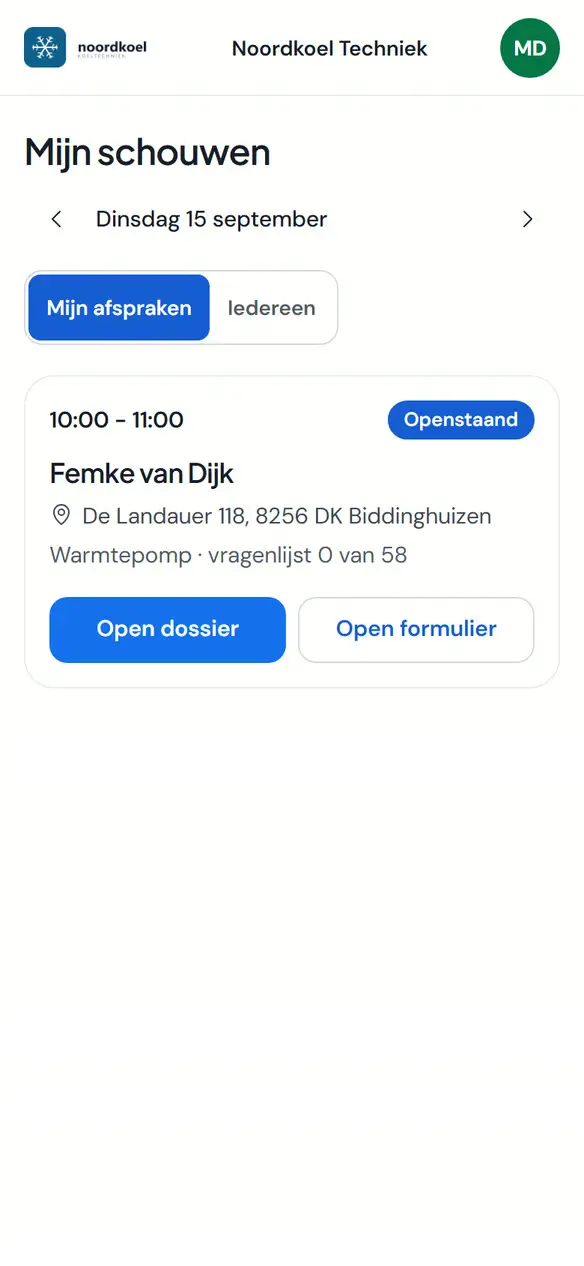
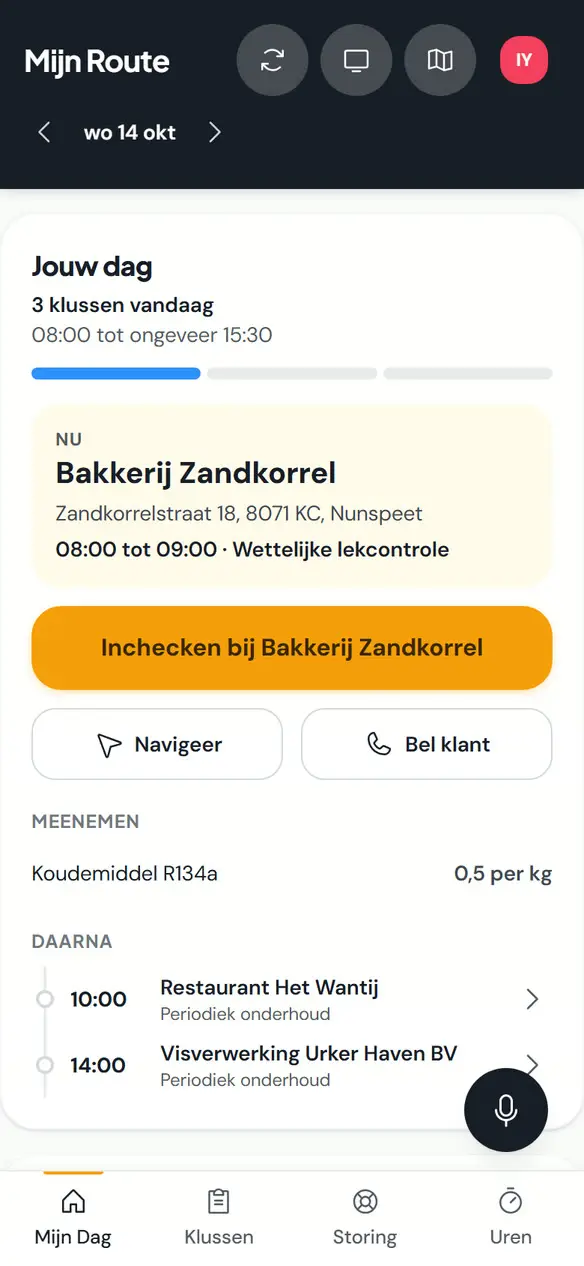
Give your technician a clear view of the working day. Jobs appear in time order, with calling, navigation and On my way on each job card.
- Day overview with the next stop and navigation to the address
- Update the status: on the way, started, done
- Notify the customer of a delay with a prepared message
- Record customer not at home, with a follow-up choice
- Create and handle tickets from the phone
- Installable on the home screen of the phone
- Staff who also work as technicians can use the Team tab when the company enables team visibility. It shows the team jobs. In the technician app, you can only edit a job assigned to you, with the required write permissions. The Team tab grants no additional editing rights over colleagues' jobs.
More about the technician app
Book an introduction job sheets and technician app
The job sheet
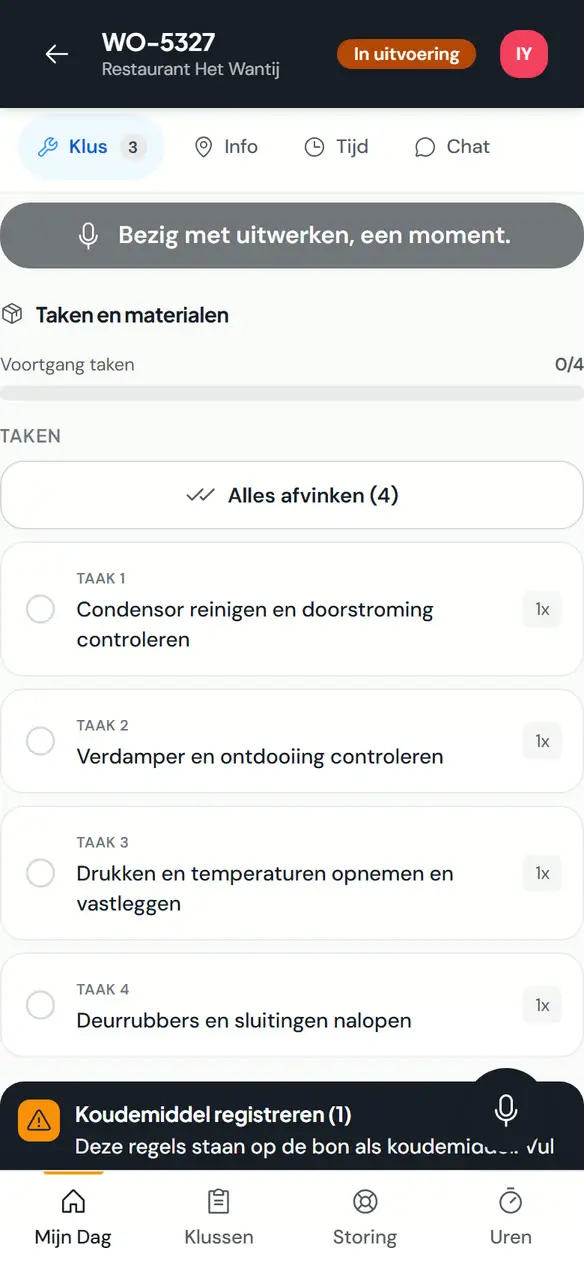
Record the work on site, even without a signal. Your technician has tasks, materials and photos on their phone, collects the customer’s signature and completes the job.
- In steps: preparation, work, completion and signature
- Tick off tasks and add photos
- Tick off materials and add items from the catalogue
- Record the unit: brand, model, serial number
- Commissioning a heat pump: design values, hydronic balancing and measured values
- Time per job
- Photograph receipts, which arrive as purchase invoices
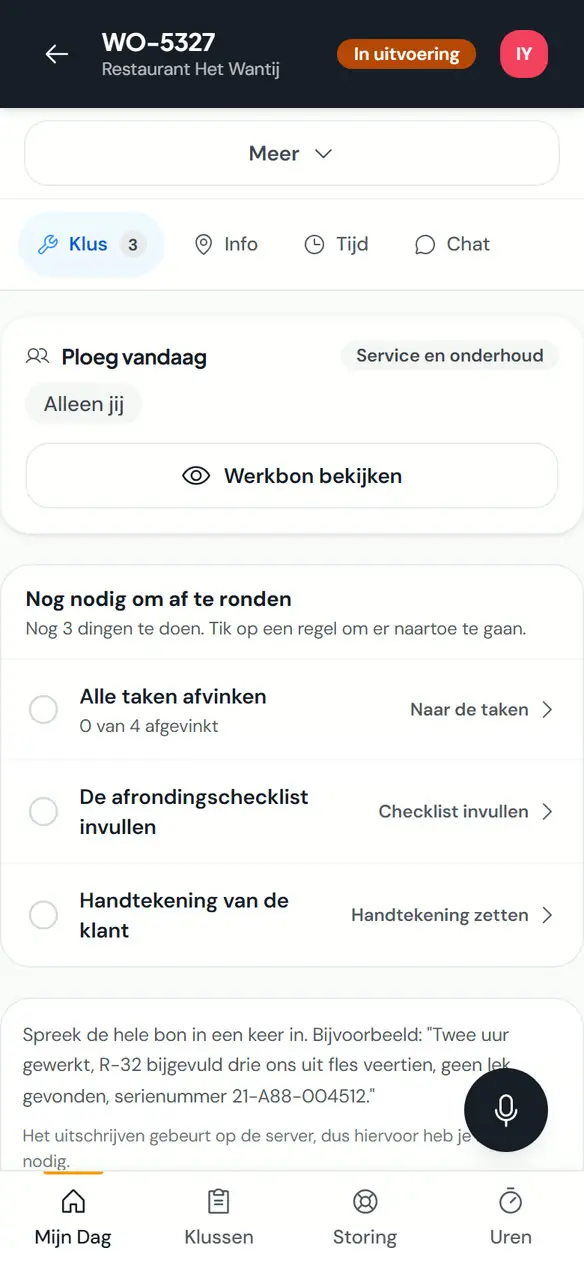
- What is still needed to finish sits at the top, with the actions; finishing only unlocks once everything is done
- On a tablet a fixed reading width, in two columns in landscape
- Your own measuring instrument and your own cylinder are already selected
- Works offline, including signing and completion; changes sync when the connection returns
More about the technician app
Book an introduction service and maintenance
Installations
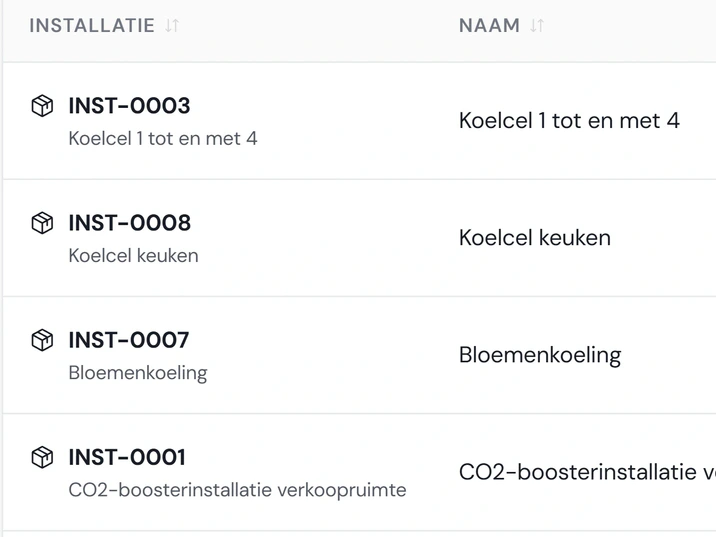
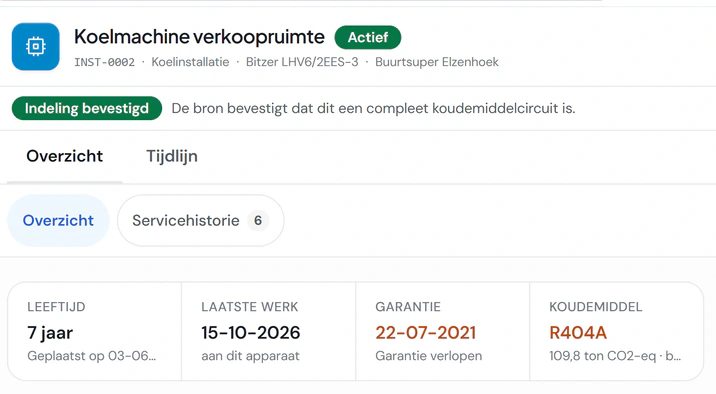
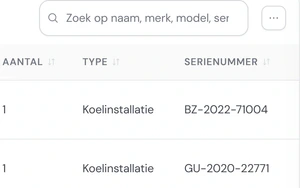
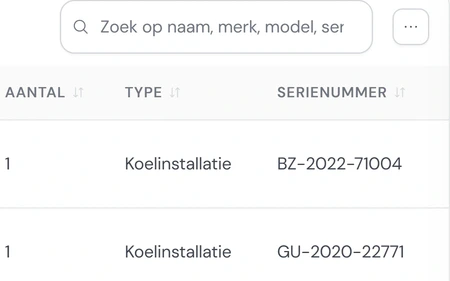
Find the details of every installed unit. Record its serial number, refrigerant and charge against the customer and location, and search by brand, model or serial number.
- Several units per installation, with maintenance history and faults
- Maintenance duration derived from earlier visits
- Copy an installation and link it to a contract
- Rating plate and QR code per installation
More about maintenance and contracts
Book an introduction service and maintenance
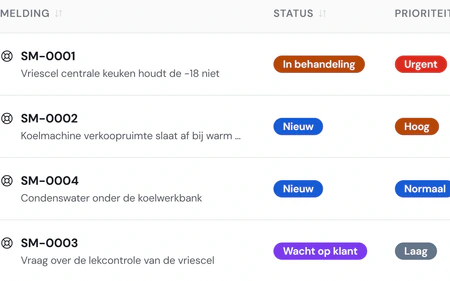
Service tickets
Turn a service request into a job ready to schedule. Each ticket links to the customer and unit, with priority, deadline and coverage; create the work order with one click.
- Receive tickets by email or through an integration
- Service level with deadline and escalation
- The conversation with the customer by email, on the ticket
- Guided ticket closure
- Decide whether your contracts also cover faults
- Analysis of your tickets
More about maintenance and contracts
Book an introduction service and maintenance
Service contracts
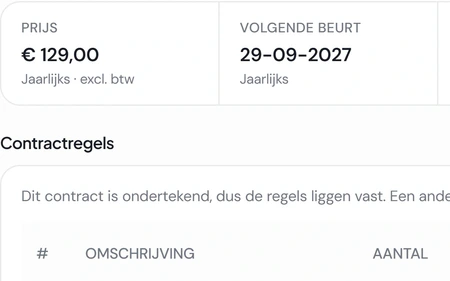
Keep maintenance agreements and invoicing together. Record the installations, price and term, let the customer sign online and prepare the invoice after each visit.
- Contract lines, linked installations, price and term
- Email for signature, sign online and send reminders
- Contract as a PDF with your terms
- Prepare contract invoices, including after a visit, with a matching invoice line for each contract line
- Direct debit through Mollie: the customer gives the mandate with the first online payment, after that you collect every contract invoice with one button
- Transfer a contract to another customer
- Keep track of expiry and renewal
- Your customer requests a contract in the portal
More about maintenance and contracts
Book an introduction f-gases
Refrigerant and leak checks per unit
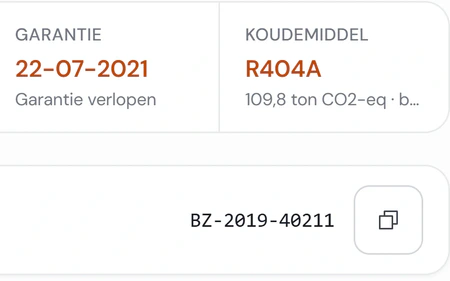
Keep track of leak checks for each unit. Fikst calculates the CO2 equivalent and inspection requirement from the refrigerant and charge, and shows the next check date.
- Leak check per installation, with cycle, leakage and follow-up
- Inspection schedule with upcoming and overdue checks
- Phase-out per customer: which refrigerant, and when topping up stops
- Access link for the customer or the inspector, with the certificates
- After a work order is completed, office staff can see which new installations still need details for their nameplate. Complete the installation record and update the article for the next job. Your configured F-gas module and account permissions determine what you can view and change.
- Selling several identical units on one suitable work order line? You can configure Fikst to create a separate installation for each unit when the work order is completed. Check the records and any missing details afterwards. Administrators set defaults for new installations; details already present on the article take precedence.
- Prepare nameplates for planned installation jobs at the office. Fikst shows missing article details and creates a PDF of the plates you select in the app. This advance print has fields to complete and no QR code yet. Check and complete the details at the installation. This requires the configured F-gas module and appropriate permissions.
More about F-gases in Fikst
Book an introduction f-gases
Register, cylinders and certificates
Keep your refrigerant records traceable. Each transaction links to a cylinder and job sheet; generate certificates with one click.
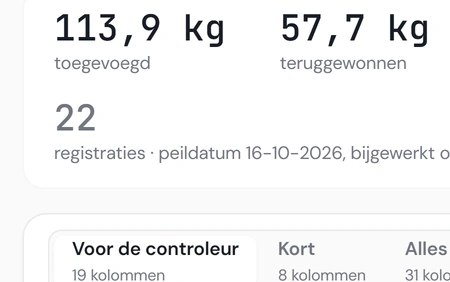
- Refrigerant register with filters, reference date and export
- Add and weigh cylinders, with movements and a timeline per cylinder
- Record cylinder use on the job sheet, including changes from the planned work
- Certificates as a PDF with the technician’s signature and the CO2 equivalent
- Annual balance per refrigerant with weighing
- Reports with export to Excel or CSV
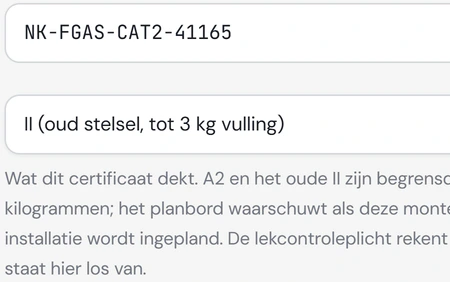
- Company and technician certificates with validity
- Warn or block an entry if the technician has no valid certificate
- Measuring instruments with inspection and calibration
- Audit file for your BRL 100 audit: certificates, the check in the Central Register and instrument inspections on a reference date in one Excel file, with what expires within 60 days
Fikst switches F-gases on for you.
More about F-gases in Fikst
Book an introduction invoicing and payment
Invoices
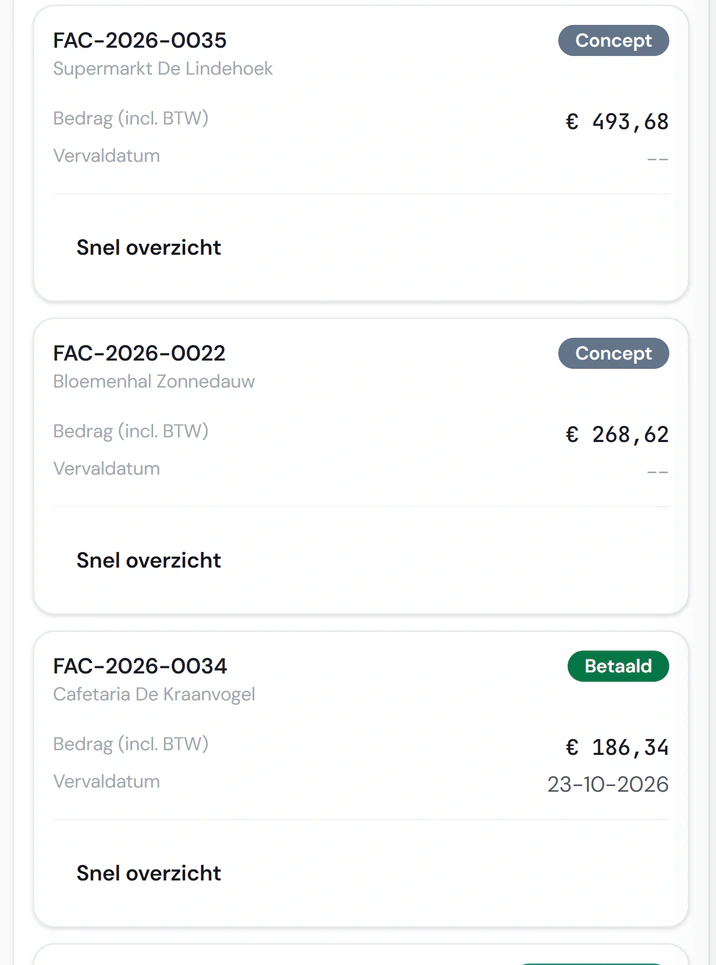
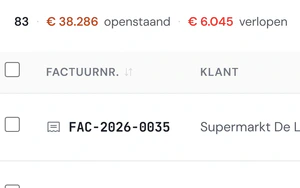
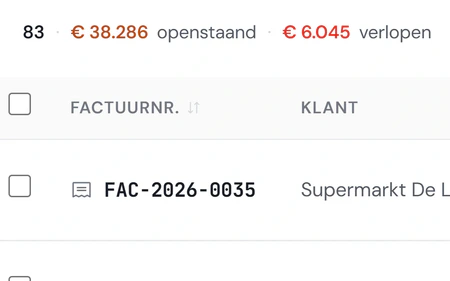
See which payments need attention. Outstanding and overdue invoices appear at the top, with instalment invoices and partial payments in the same list.
- From a work order, quote or contract
- Instalments with deposit and final invoice, also with an existing invoice as an instalment
- Full or partial credit notes, and invoice splitting
- Delete a draft, and reopen a cancelled invoice that was never sent
- Recurring invoices
- Reverse charge VAT and several VAT rates on one invoice
- Send, in bulk too, with PDF and online invoice link
- E-invoice (UBL) as an attachment
Book an introduction invoicing and payment
The customer’s invoice
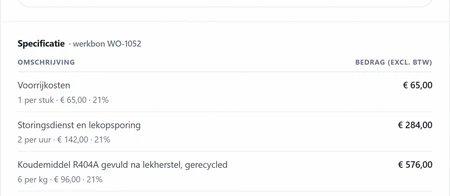
Invoice completed work without retyping it. Create the invoice from the job sheet, including refrigerant used, and let the customer view it online with the payment details.
- Online invoice page, payment with iDEAL through Mollie
- Share a payment link
- Payment reminders on your own schedule and template
- Outstanding balances and invoice ageing
- Keep track of deposits, with a reminder to the customer
Book an introduction invoicing and payment
Your accounting integration
Pass your sales invoices and credit notes to your accounting software; we set up the connection with your package. Your accountant can view them in Fikst at no charge, while keeping the accounts in their own software.
- Send sales invoices and credit notes on to your accounting package
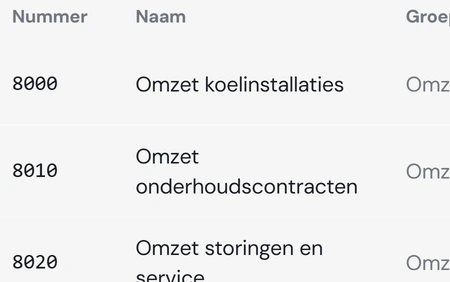
- General ledger account per invoice line
- Journal entries for corrections
- Your accountant gets a free account with read-only access to financial screens and does not count as an office user
- Audit bundle for the accountant or the tax office
Book an introduction purchasing and stock
Purchasing
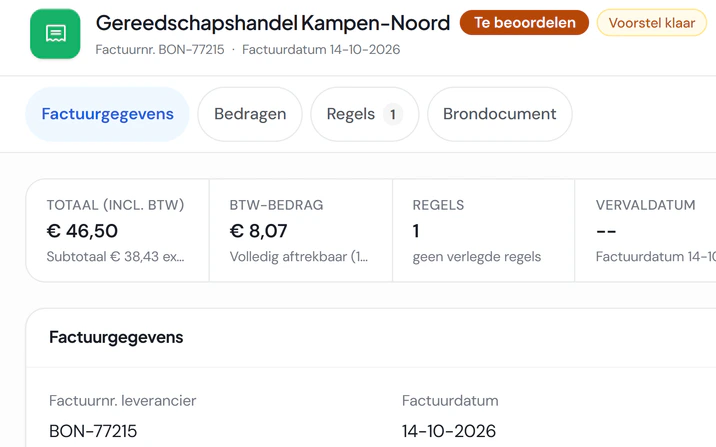
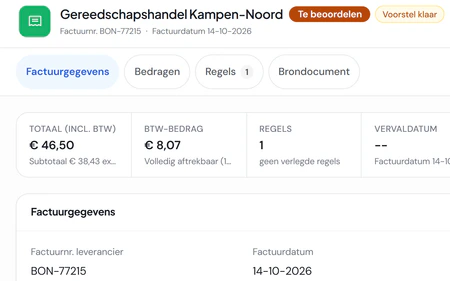
Process purchase invoices with less manual entry. Forward an invoice by email or photograph a receipt; Fikst extracts the details for you to review.
- Purchase invoices by email, as e-invoices too
- Extract receipt details from a photo, including supplier recognition
- Bulk approval and duplicate receipt detection
- Create a payment batch as a SEPA file for your bank
- A purchase list combining material requirements from your work orders
- Send purchase orders and book in the delivery
- Warnings when a delayed delivery affects scheduled work
Reading by Fikst runs on AI credit. If your own AI reads the receipt, it costs no credit.
Book an introduction purchasing and stock
Items and stock
Keep products, prices and stock together. Manage your catalogue with barcodes and enable stock tracking by item and warehouse.
- Items with brands, units, sales and cost prices and barcodes
- Stock per warehouse, with movements and transfers
- Minimum stock levels and reorder suggestions per warehouse
- Office staff issue material from reserve stock for a work order. For an eligible open material line, issue the available part and keep the remainder as a separate line to order. The technician sees what is still in reserve and what has been issued. Stock management must be configured and write permissions are required; placing the order remains a separate action.
- Stock counts, including voice entry
- See scheduled material demand and available stock
- A guided start: warehouse and opening stock
Book an introduction bank and VAT
Bank
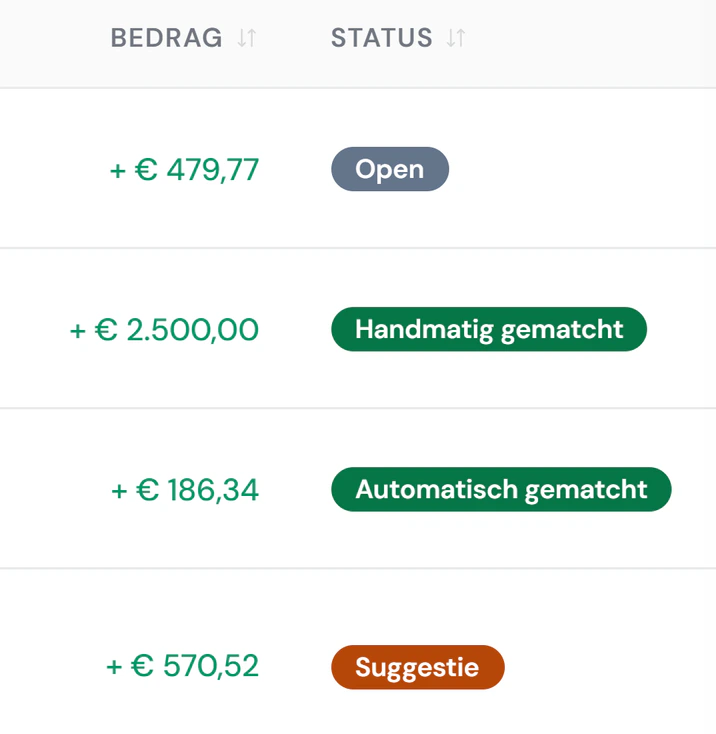
Match payments to the right invoice faster. Connect your bank account or import a bank statement file; Fikst suggests the matching invoice.
- Link your bank account, or import a bank file (CAMT.053, MT940)
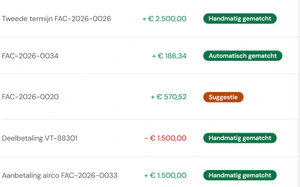
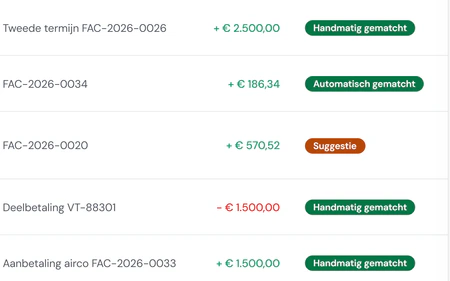
- Match to invoices and purchases automatically and by hand
- Split a payment over several invoices
- Undo a match or ignore a transaction
Book an introduction bank and VAT
Preparing the VAT return
Prepare your VAT return with the supporting records at hand. See the amounts and invoices for each box; Fikst does not submit the return or provide tax advice.
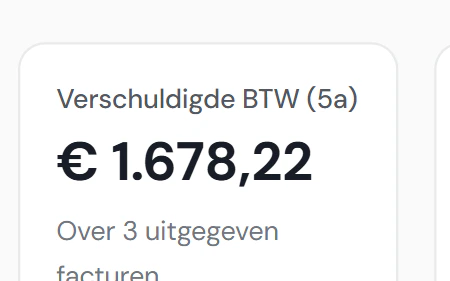
- Boxes with the breakdown per invoice
- Close and reopen periods
- Questions from your accountant and your answers on the period
- Revenue, outstanding and cash on your start screen
Book an introduction customer portal
The questionnaire before the survey
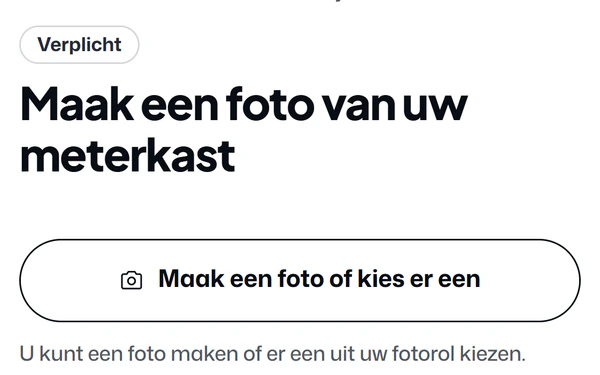
Gather the information for your site survey before you travel. Your customer completes the questionnaire at home and adds photos; submission creates a task for you.
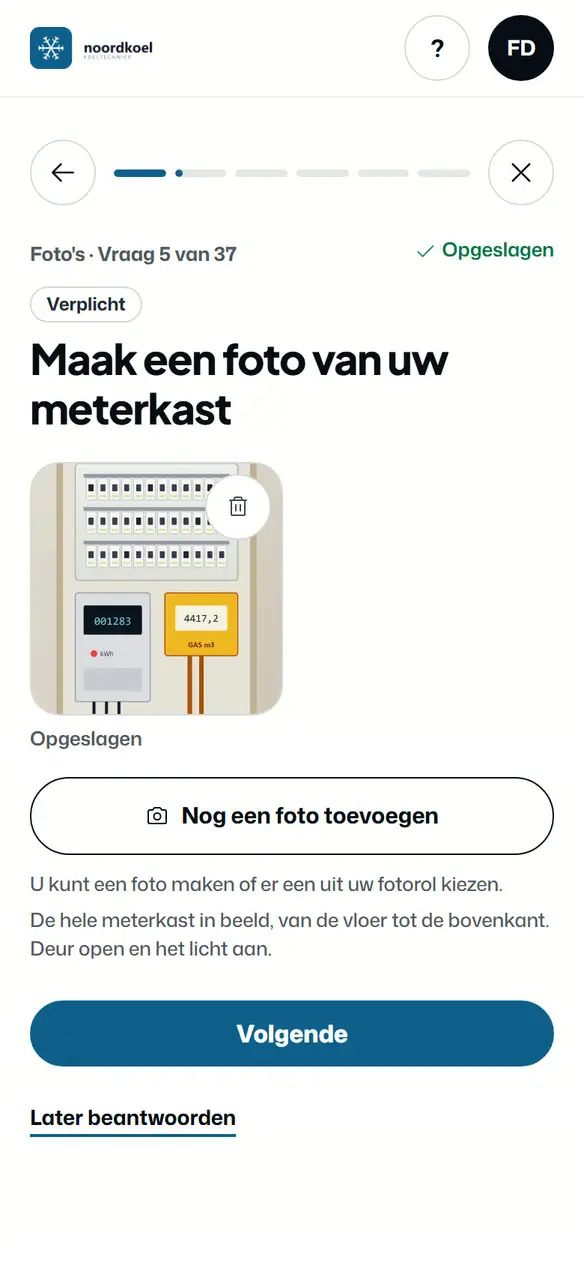
- One question per screen, with photos
- Answer later, with reminders
- Set up your own questionnaires
- An optional proposal for your salesperson after the heat pump questionnaire
More about the customer portal
Book an introduction customer portal
Customer maintenance booking
Book maintenance without the back-and-forth calls. Your customer chooses a time that fits your route, and the visit appears on your planning board as a work order.
- Book or reschedule visits, with reminders
- See appointments and add them to their own calendar
- Maintenance history per unit
More about the customer portal
Book an introduction customer portal
Reporting a fault
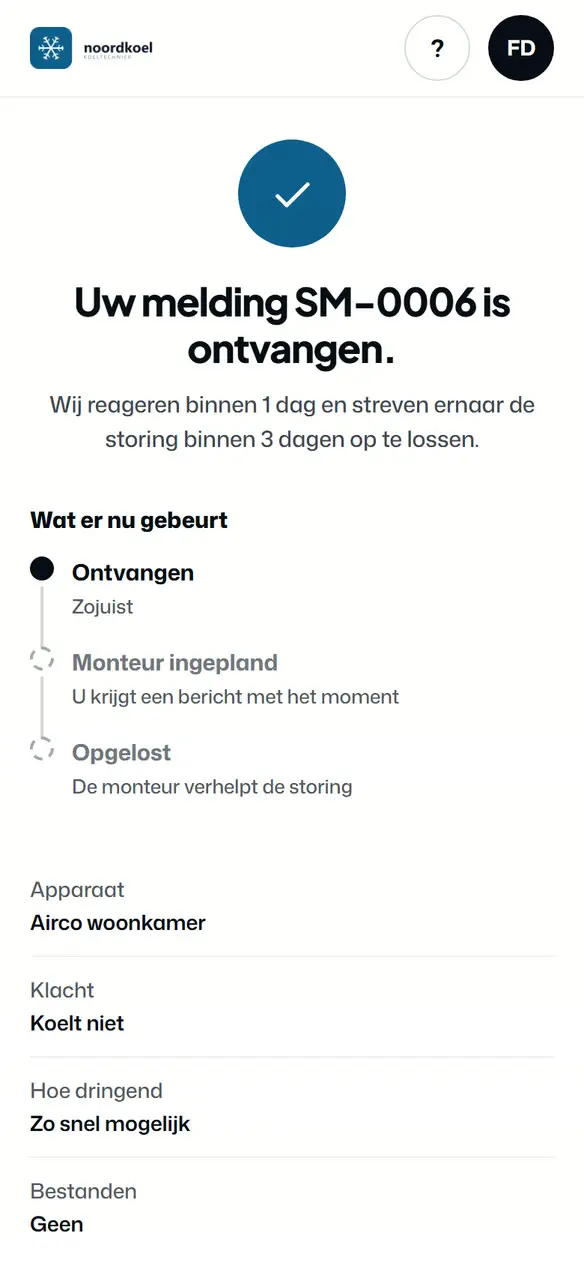
Receive fault reports with the details you need. Your customer adds an error code and photos, and the ticket is already linked to the customer and unit.
- Report a fault or question on the unit, with photos and a confirmation by email
- Request a maintenance contract from your packages
- Update their own details
More about the customer portal
Book an introduction customer portal
Quotes, invoices and contracts
Let customers find their own documents. Quotes, contracts and invoices are organised by unit in the customer portal.
- View quotes and approve
- View and pay invoices
- The customer’s installations and contracts
- The heat pump’s ISDE subsidy file, prepared after invoice payment
More about the customer portal
Book an introduction customer portal
Managing the portal
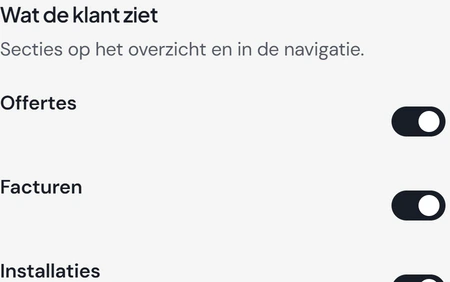
Manage customer requests in one place, with your own branding. Choose what customers can see and do in each part of the portal.
- Sign in with a code by email, no password
- Invite customers, one by one or in bulk, and see the email that goes out first
- Your own frequently asked questions in the portal
- Portal requests: all customer requests in one place
- Set up branding, features, texts and emails yourself
- Preview before you publish
Fikst switches the customer portal on for you. You choose per feature what your customer may do.
More about the customer portal
Book an introduction heat loss and advice
Heat loss per room
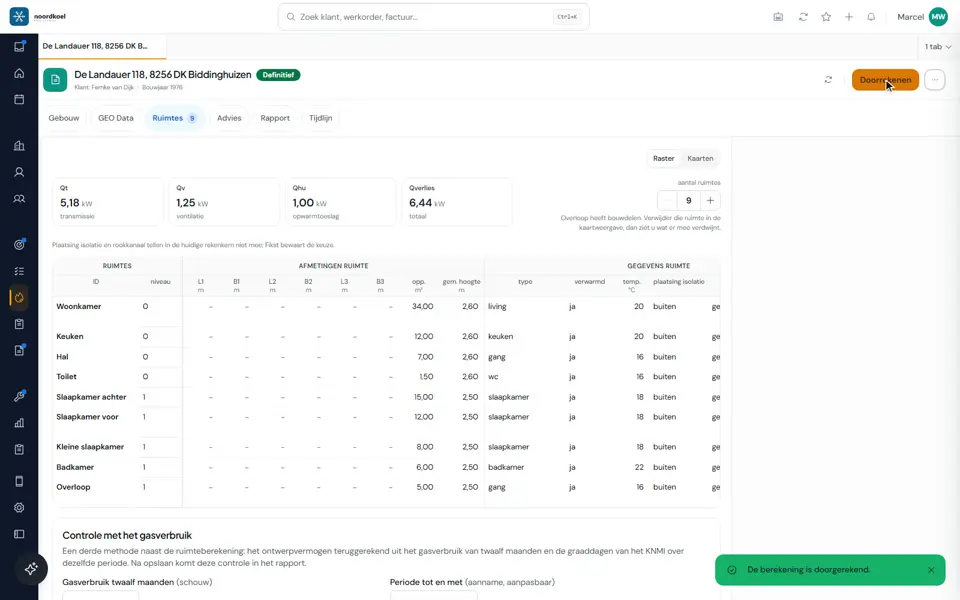
Determine heat loss for each room with the assumptions in view. Calculate transmission, ventilation and heat-up allowance, with missing inputs clearly marked.
- According to ISSO 51:2023, ISSO 53 and ISSO 57, based on NEN-EN 12831
- Look up the address and prefill the building from open sources
- Rooms and building elements, with insulation values based on construction year
- Insulation overview and minimum recommendations for each building element
- Check the calculation against energy consumption
- Recalculate, and a notice when a result is out of date
More about the heat loss calculation
Book an introduction heat loss and advice
Advice and report
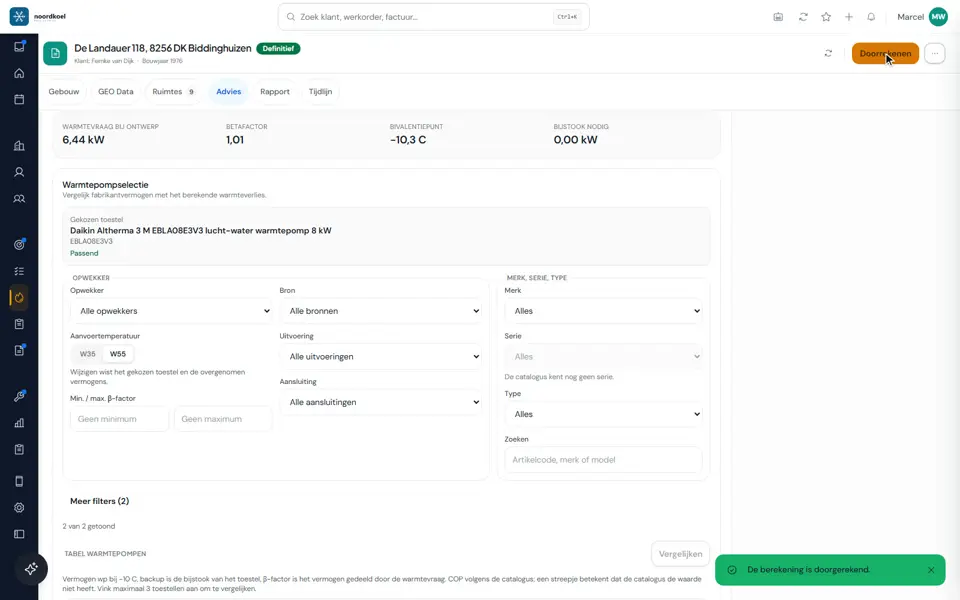
Support your equipment recommendation and use it in your quote. Compare capacity, the bivalent point and backup heating, then send the report to your customer as a PDF.
- Heat pump advice with unit choice from manufacturer data
- Compare annual energy use and costs for different heat pumps
- Output of radiators and underfloor heating per room, with the minimum flow temperature
- Cooling load per room, with the simultaneous peak for the outdoor unit
- Outdoor unit noise at the property boundary, by day and at night
- Hot water: draw-off profile, cylinder and heat-up time
- Customer report as a PDF, with preview, by email or in the customer portal (you switch that on)
- Create a quote with the chosen unit
- A project record with a timeline and linked quotes
Fikst switches heat loss on for you.
More about the heat loss calculation
Book an introduction ai
AI advisor for your customer
Help website visitors and customers in your portal with answers based on your company knowledge and working agreements. The advisor is configured and activated per company.
- On your website through the request widget and in the customer portal
- Answers using approved company knowledge and working agreements
- Prepare an enquiry using the details from the conversation
- Appointment options only when you have enabled them
- Company-specific limits on usage and actions
After setup and activation. Available actions depend on the channel, permissions and your working agreements. AI usage has its own limits and costs.
Explore the AI advisor for website and customer portal
Book an introduction ai
Dictate instead of typing
Save your technician typing after the job. They describe the work and Fikst turns it into job sheet entries; they review the proposals and accept the correct ones.
- Dictate the job sheet
- Dictate a quote, with a checklist updated as you speak, on your phone too
- Dictate the site survey
- Count stock with your voice
Runs on AI credit, with a monthly cap you set yourself.
More about AI in Fikst
Book an introduction ai
The Assistant
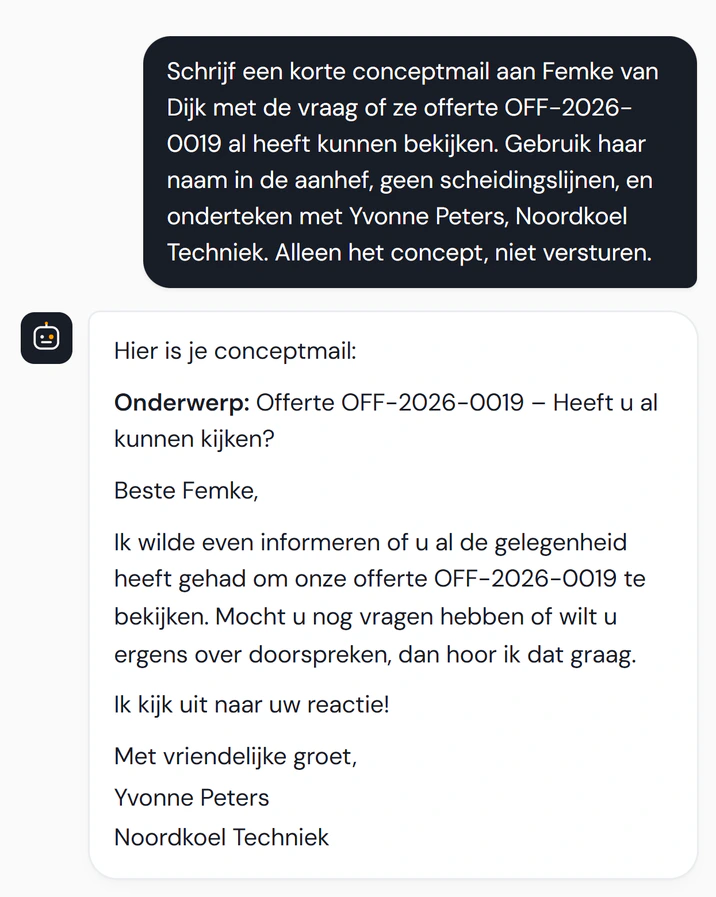
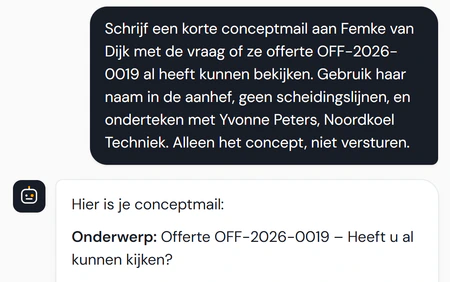
Open the Assistant from any page and ask in your own words, for example for a draft email about a quote. A draft stays a draft until you send it yourself, and you approve or reject whatever it suggests.
- Available throughout Fikst, including on your phone
- A daily briefing of what is going on
- Have a draft email written
- You approve or reject what it suggests
Runs on AI credit, with a monthly cap you set yourself.
More about AI in Fikst
Book an introduction ai
Extract data from documents and photos
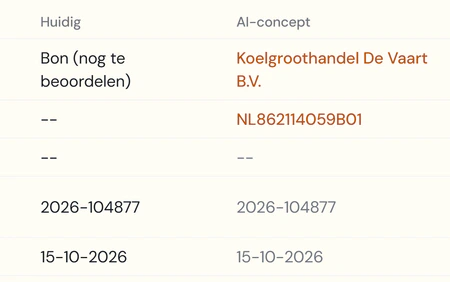
Capture details without typing them all out. Fikst extracts data from receipts, purchase invoices and photos for you to review.
- Read receipts and purchase invoices, by Fikst or by your own AI
- Read photos from the questionnaire and the survey
- Assess a lead
- Fetch company details from a website
- Look up the refrigerant per unit model
Runs on AI credit, with a monthly cap you set yourself.
More about AI in Fikst
Book an introduction ai
Connecting your own AI
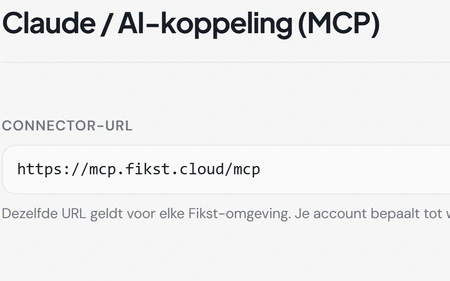
Work with your company data from the AI you already use. Connect Claude or another AI to Fikst through MCP, within your account’s permissions.
- A connection with hundreds of actions in Fikst
- Sign in with your own Fikst account
- Ask your connected AI through MCP which installations created from completed work orders still need details and which articles to complete for future jobs. Your AI can also show nameplate preparation for planned work orders and read default values. Only an administrator can change those defaults on request. Select the nameplates in the app, where you create and print the PDF. The F-gas module and account permissions are still required.
- Enable or disable each AI feature, with credit and usage tracking
- A company profile so the AI knows your business
- Your setup through your AI, with a guide to what the connection can do
- Check existing customer activity first and ask for clarification when needed
- If something cannot be done yet, your AI tells us
More about AI in Fikst
Book an introduction insight
Your daily overview
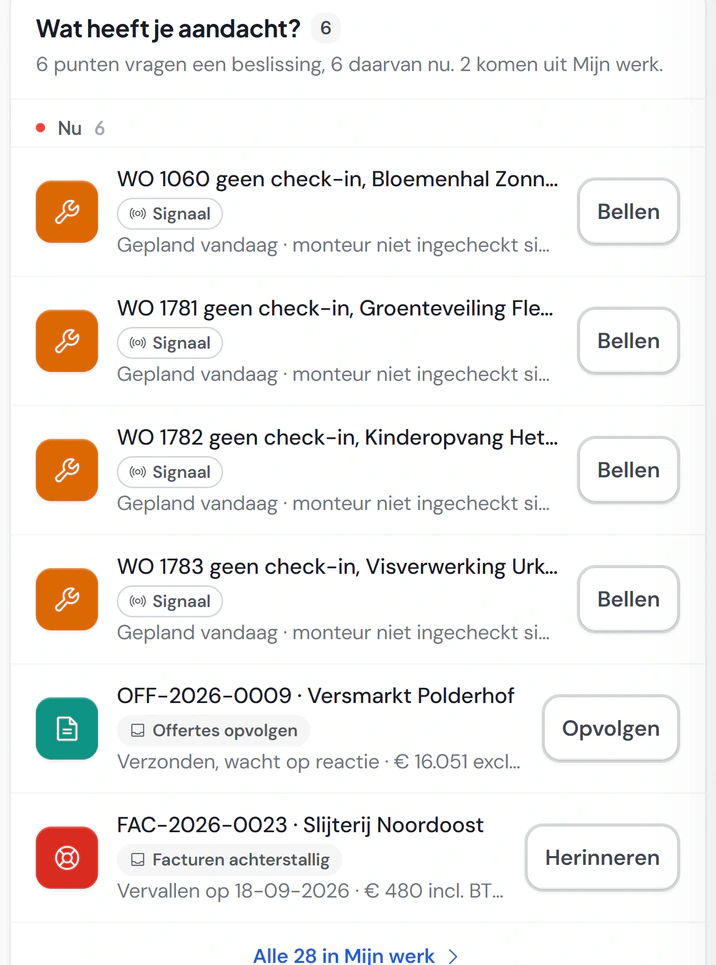
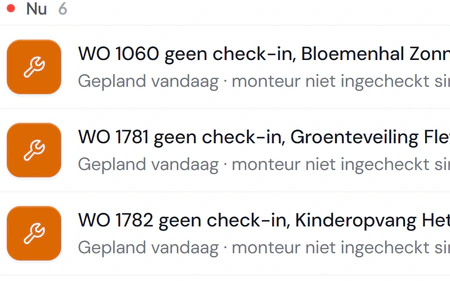
See where your business needs attention. Check which technicians have not checked in, call from the overview and track revenue, outstanding amounts and your pipeline.
- What needs attention, with the button to fix it
- Key figures: revenue, outstanding, pipeline, contracts
- Cash for the next thirty days
- Targets for revenue and activity counts
Book an introduction insight
My work
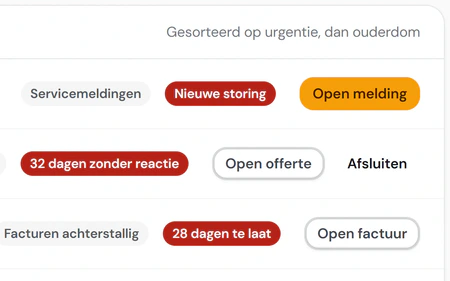
Deal with the most urgent work first. Your open actions are sorted by urgency, with a button to complete each one directly.
- Customisable queues for each type of work
- Your work, unassigned work or the whole team’s work
Book an introduction insight
Analysis and reports
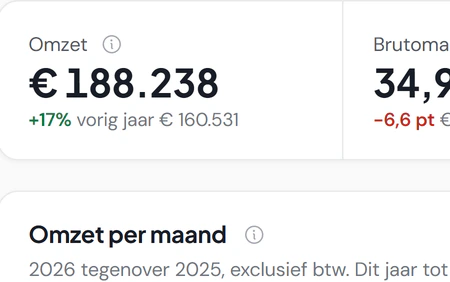
See how your business is performing against last year. Compare finances, customers, leads, quotes, projects and service, with an explanation of each metric.
- Revenue, margin by cost category and aged receivables
- Leads, win rate and your quote funnel
- Revenue forecast
- Reports with export: budget, employees, projects, job time
- Log: who changed what, with export
Book an introduction projects and team
Projects
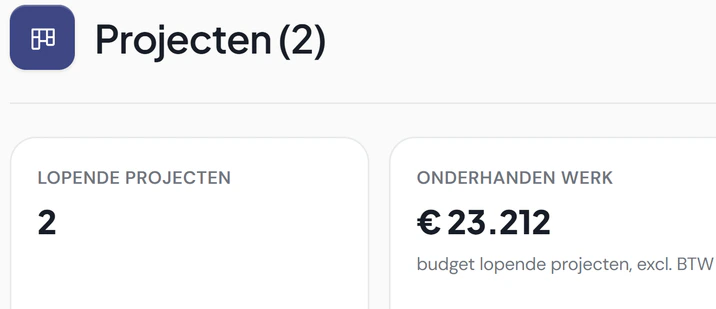
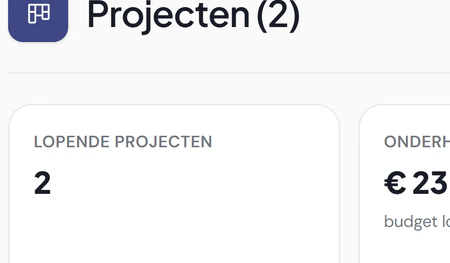
Keep larger jobs under control without starting from scratch. Manage stages, tasks, team members, materials and budget for each project, and reuse project templates.
- Project stages and tasks, with members
- Material and budget per project
- Project templates and your own stages
- Portfolio of all your projects
Book an introduction projects and team
Team
Schedule your team with availability and skills in view. Manage each employee’s role, signature and certificates, and use those details when planning work.
- Teams and skills on work orders and the planning board
- Work patterns and availability per employee
- Hourly rates per employee or level
- Technician timesheets: confirmed by the technician or taken from the job sheet
Book an introduction automation and communication
Let visitors submit an enquiry on your own website in your own branding. The enquiry and entered details come together in Fikst for follow-up.
- An embeddable widget with your company name and branding
- Focused questions that give an enquiry more context
- Enquiries directly in your CRM instead of scattered across your inbox
- The AI advisor as a separately configured entry point
After setup for your website and company. The new 3D configurator is still in development and is only shown in our demo for now; you cannot order it yet.
Explore and try the request widget
Book an introduction automation and communication
AI phone assistant (in development)
In development: a phone assistant that helps callers and prepares requests using the same company knowledge and working agreements as the AI advisor. You cannot order it yet.
- Voice intake with company knowledge and working agreements (in development)
- Create a request only after the caller gives permission (in development)
- Company-specific call and usage limits for the AI phone assistant (in development)
- The AI phone assistant is in development; configured telephony connections with call records and customer context are a separate feature
The AI phone assistant is not yet a generally available phone service. A trial with real phone calls and a number setup are still needed. We do not offer outbound calls through a Fikst phone system here.
Explore the phone assistant and development status
Book an introduction automation and communication
Automations
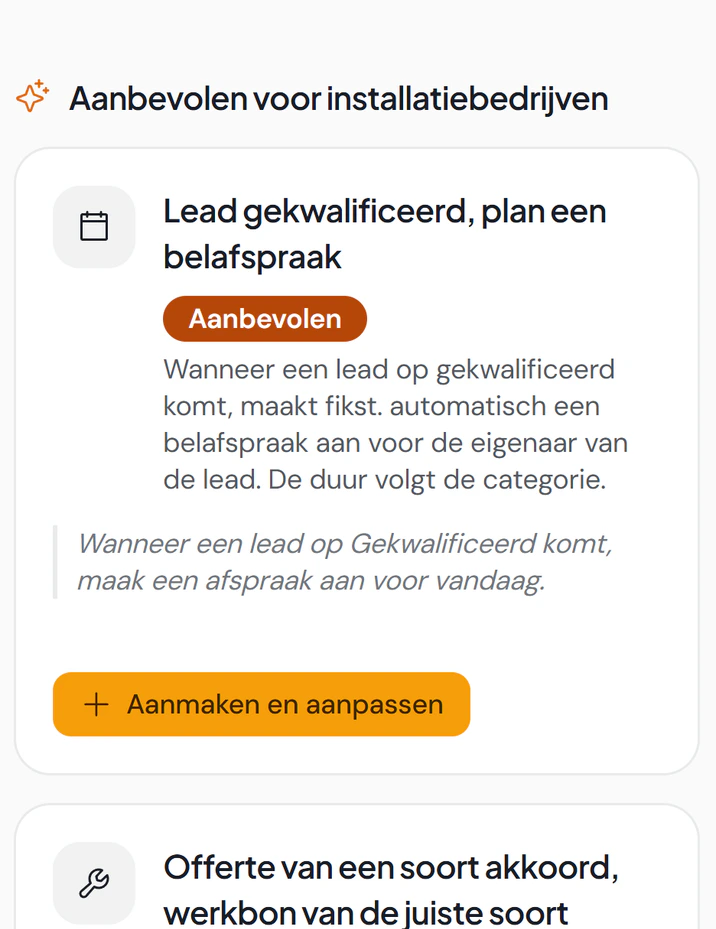
Run recurring tasks according to your rules. Configure what happens when leads, quotes, work orders, invoices, contracts or service tickets change.
- On creation, a changed field, a threshold, a schedule or inactivity
- Notification, field update, work order, draft invoice, customer email or task
- Ready-made recipes to start from
- Test runs and a log per automation
- Quiet hours and approval for actions involving money
Book an introduction automation and communication
Email and notifications
Keep customer communication with the work it concerns. Email from the customer record, quote or invoice using your company name or domain, and track opens and delivery failures.
- Templates with merge fields and a preview
- See whether an email was opened and a link clicked
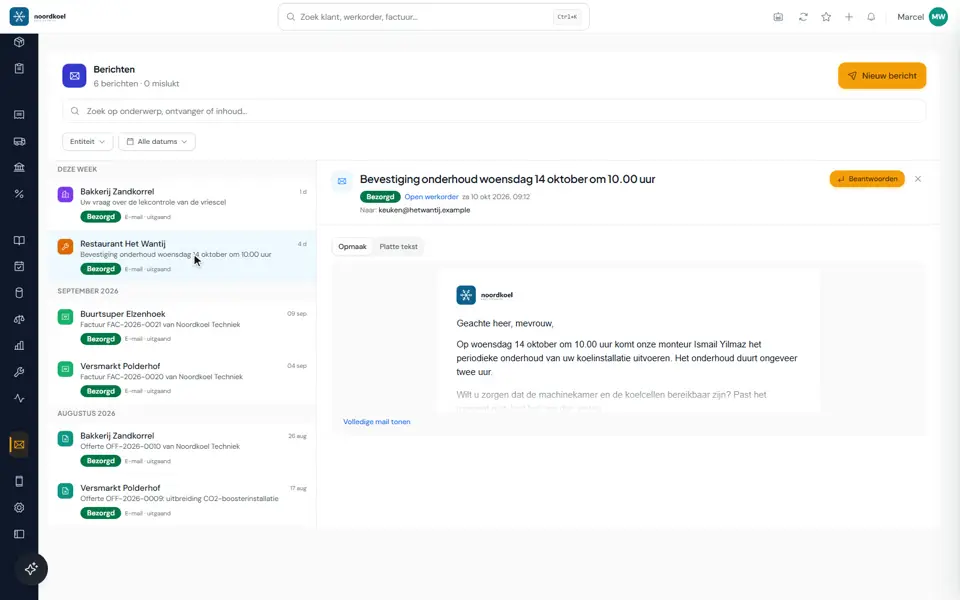
- If an email does not arrive, you see it in Messages, on the timeline and on the customer or lead, with the reason and a button to correct the address
- The office gets a notification, and for an undeliverable address the follow-up pauses
- Your own sender domain and channels for incoming mail
- Signature per organisation and per employee
- Choose per event who gets which notification
Book an introduction automation and communication
Integrations: ready-made or built for you
Connect your systems and avoid duplicate data entry. Link your bank, accounting, telephony and calendar; we build custom integrations for other systems that have an API.
- Integrations with your bank, accounting and telephony are included in your subscription
- We build a custom integration for you; you hear the cost upfront
- A REST API with keys and permissions per key
- Signed webhooks
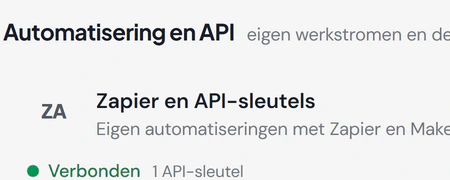
- Zapier and Make
- Map service names from your connected lead integration to your own work types. An administrator configures the additional names in Service types. This requires a configured lead integration, through your website or an automation connection. Discuss during setup whether this fits your company. Unknown service names remain for review.
- Connect your own AI, with hundreds of tools
Book an introduction settings and permissions
Roles and permissions
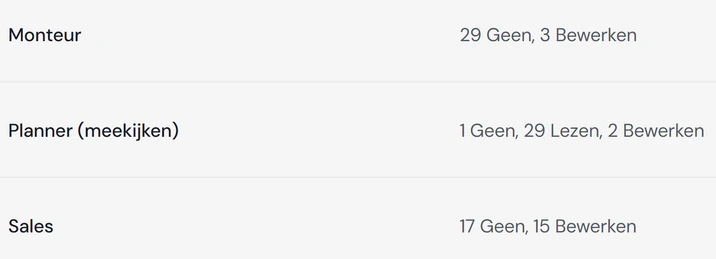
Give everyone access that fits their work. Set each role’s access to none, read, edit or full for each area; cost prices and margins require the appropriate permissions.
- Your own roles, with templates to start from
- Employee permissions that add to or limit the role
- An explanation why something is not allowed, instead of an empty page
- Sign in with email and password or with Microsoft
Book an introduction settings and permissions
Setup
Set up Fikst around the way your business works. Adapt fields, stages, labels and layouts, use your own branding and switch off unused modules.
- Stages and statuses per area
- Custom fields and custom objects
- Validation rules that prevent invalid entries from being saved
- Screen layout: fields, columns and tabs
- Custom labels for menus and screens
- Apply the branding from your website
- Modules on or off, your data stays
- How you work: a few questions about your way of working, and Fikst switches on the matching automations, follow-ups and types of work
- Switching systems: import your customers and contacts from Excel or CSV, with a trial import and an option to undo it; no email is sent
- Integrations with Microsoft 365, Google Calendar and Mollie
- Dark mode
Book an introduction